Rule Result View
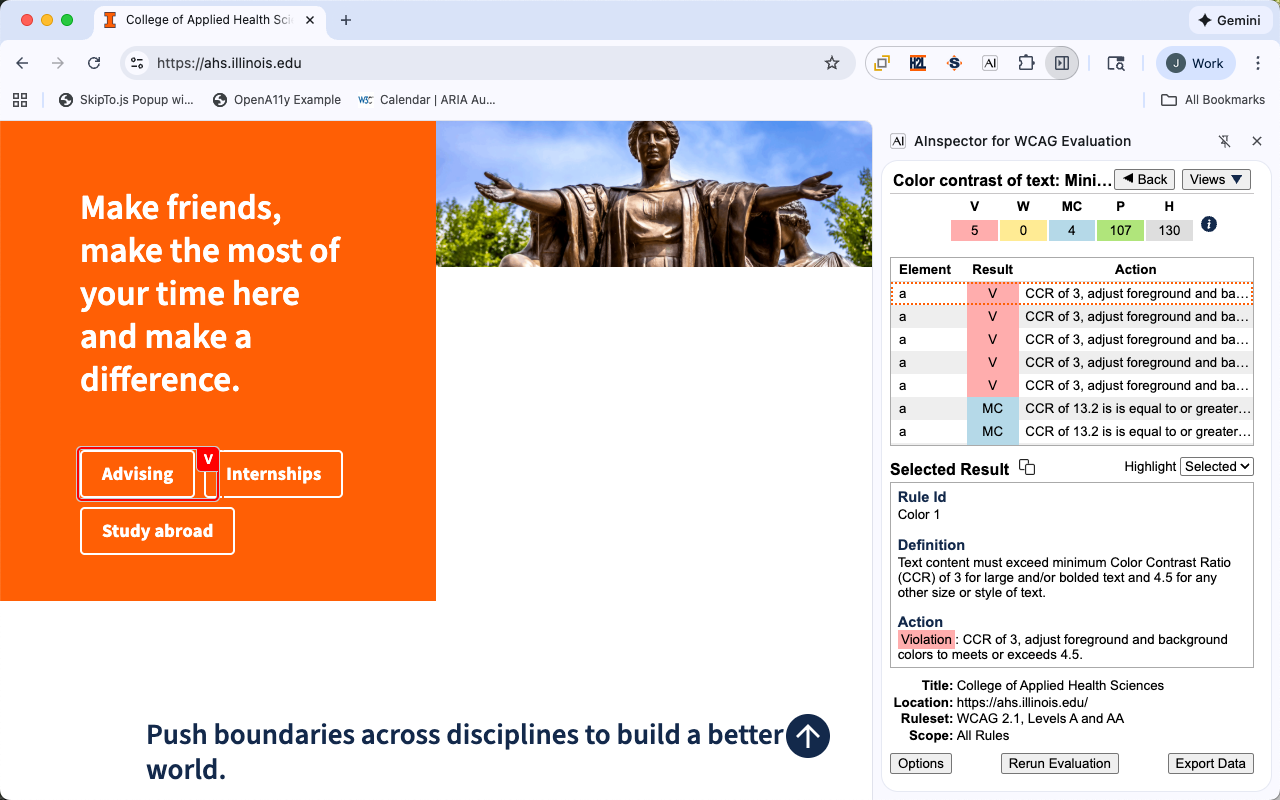
Features
| Feature | Description |
|---|---|
| Rule Summary | A summary of the accessibility requirement. |
| Results Summary |
Provides a count of the number of results with Violations (V), Warnings (W), Manual Checks (MC) and Passed (P) and that are Hidden (H). Note: Hidden results are not evaluated for accessibility, but are provided for developers and quality assurance people to be aware of content that could become visible. |
| Results Grid |
The Results Grid has three columns:
|
| Selected Result |
Selected Result information includes the following properties:
Note: Some rules include additional information, see Color Contrast Rules, Table Rules, Table Cell Rules and Title Rules. |
| Evaluation Information |
This section appears in every view and includes information on:
|
Buttons
| Button | Description |
|---|---|
| Back | The button changes the view back to the last rule group view. |
| Copy | The button copies the Selected Results information to the clipboard in a plain text format. |
| Export Data | The button prompts to save the rule result data to a local file system in CSV or JSON format. The Export button is available in all views. |
| Highlight |
The select box changes which elements on the page are highlighted, options include:
Note: The highlight uses the border color and a label in the upper left or right corner of the highlight to indicated the type of result. |
| Options | The button opens option pages for the extension. The Options button is available in all views |
| Rerun Evaluation | The button prompts the user to rerun the evaluation on the current page. The Rerun button is available in all views. |
| Views | The button menu opens a menu to navigate to one of the rule group views and is an alternative to using the grid and details button. Handy for keyboard users, especially when shortcuts are enabled. The Views button is available in all views. |