Edge Browser
Edge Add-ons
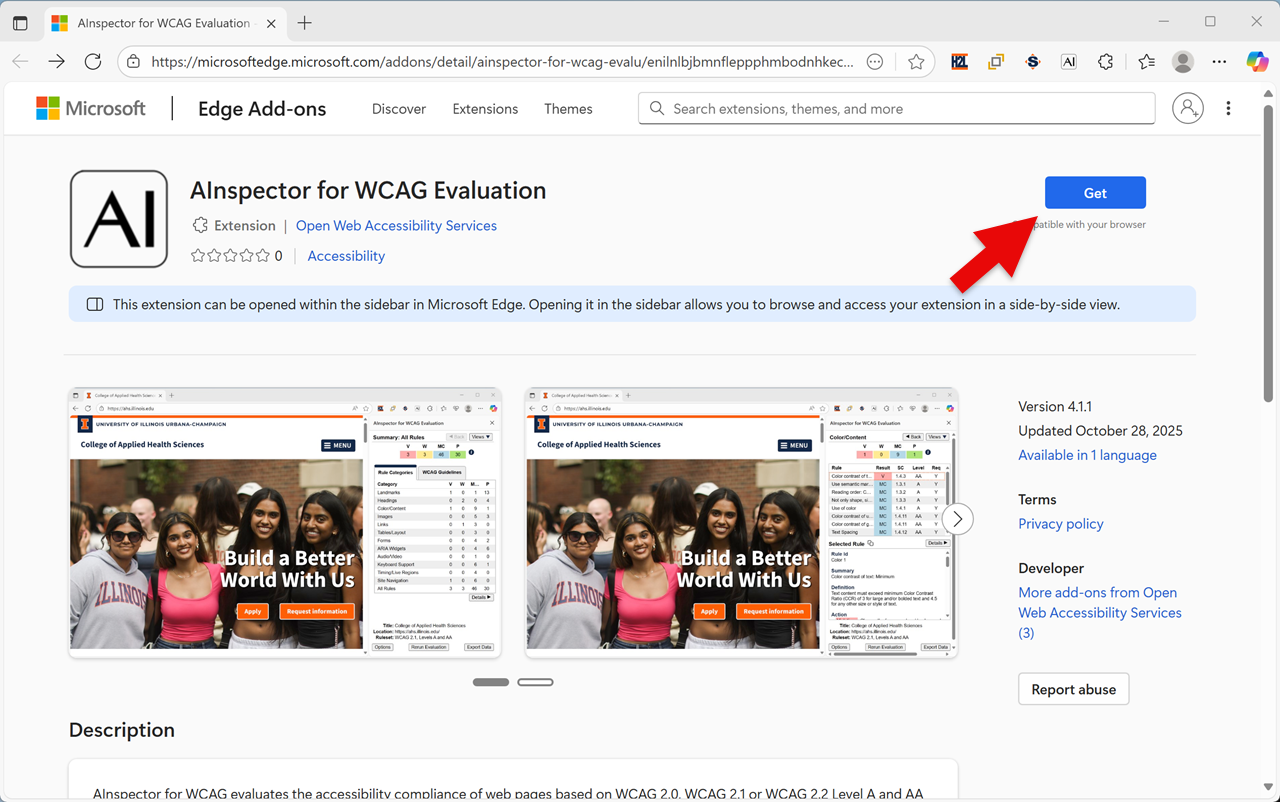
- To install the extension first go to the Edge Add-ons website.
- Use the "Get" button to install extension into the Edge browser.
- The
 icon will initially be hidden, but can be pinned to the toolbar using the extension manager.
Show Hide Screen Shot
Pinning to Toolbar
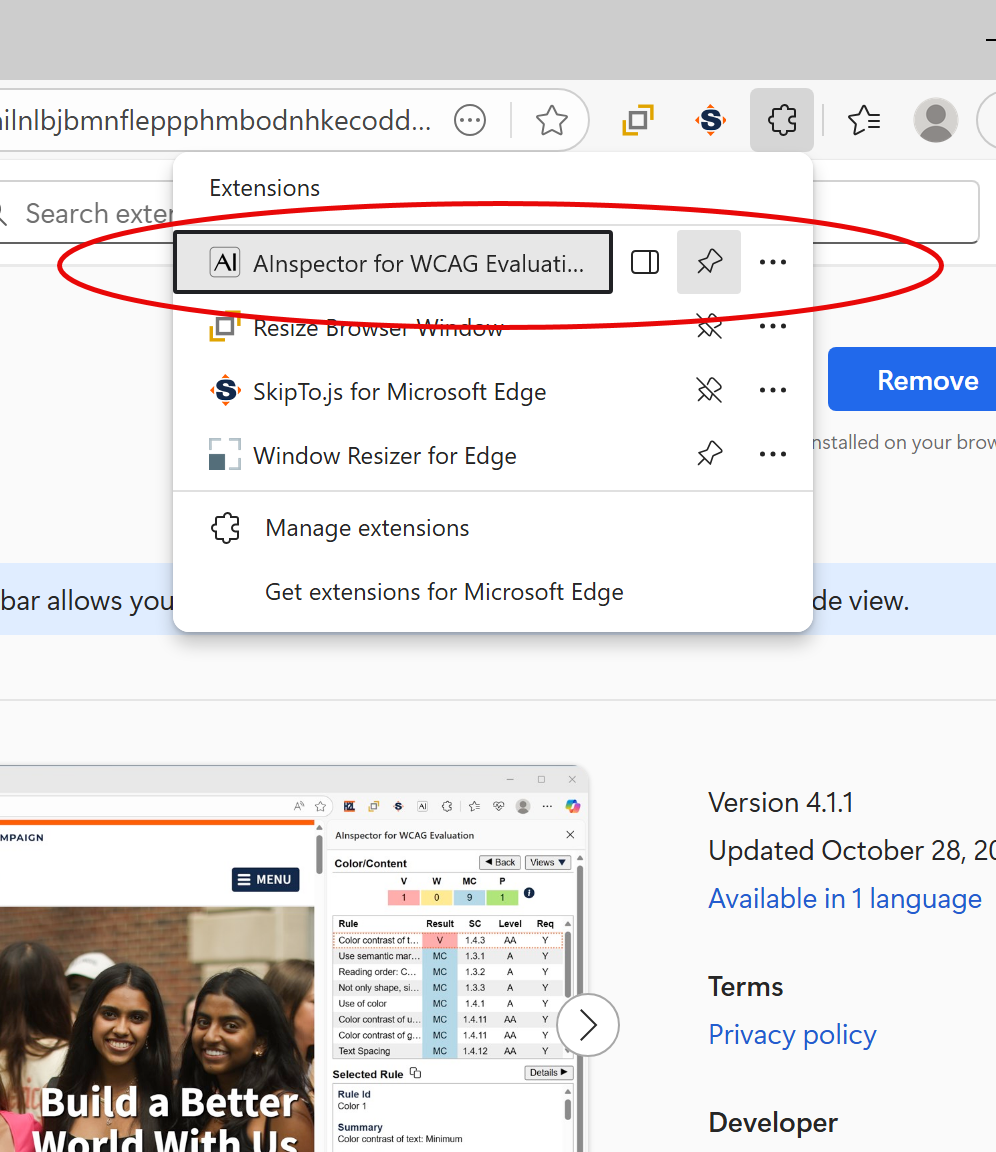
After you install AInspector for WCAG Evaluation you can pin the
icon to the toolbar to open and close the side panel.
- Select the extensions manager icon in the Edge toolbar and locate AInspector for WCAG Evaluation in the list of extensions.
- Use the toggle button next to the extension to enable
icon to appear in the toolbar.
- Selecting the toolbar icon opens and closes the side panel.
Show Hide Screen Shot
Setting a Keyboard Shortcut
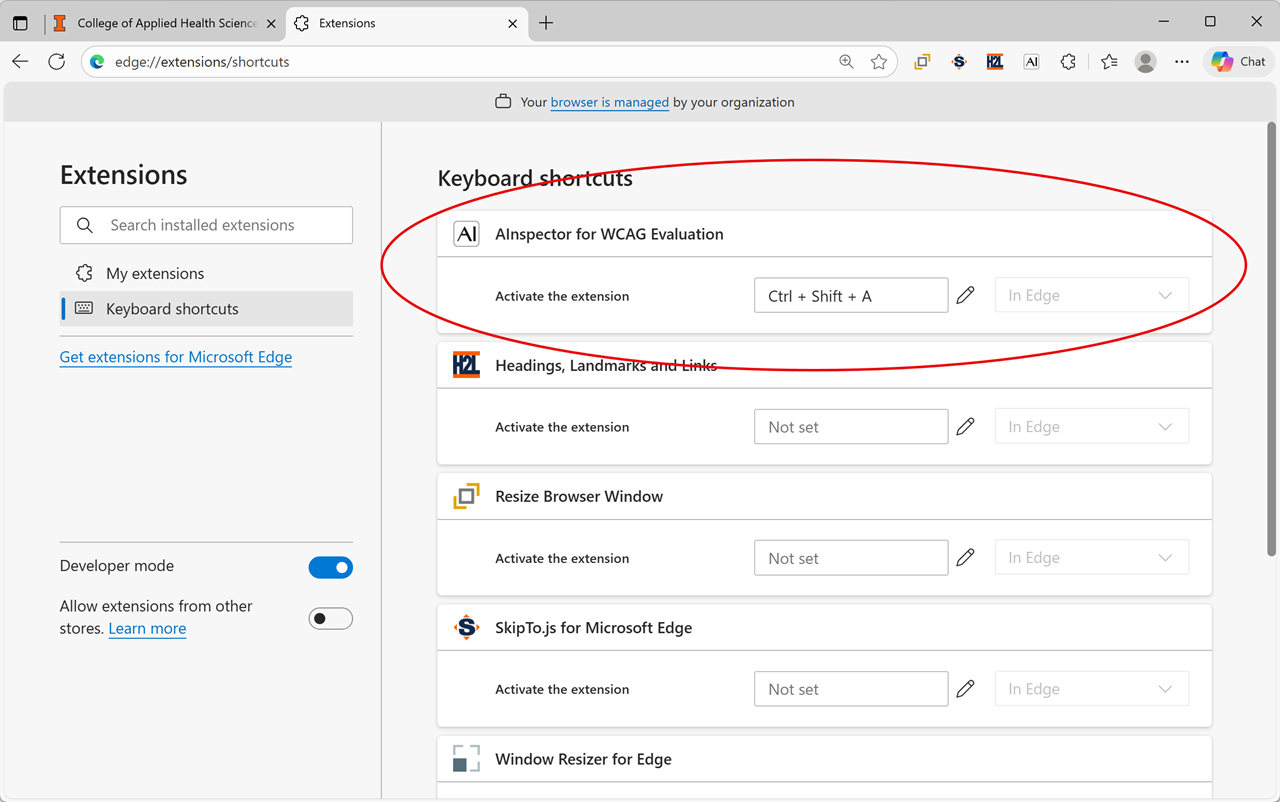
A keyboard shortcut can be assigned to open and close the side panel.
- Go to the Manage Extensions settings page (e.g. URL:
edge://extensions/). - Select the keyboard shortcuts link (e.g. URL:
edge://extensions/shortcuts). - Select the edit icon associated with the extension and focus moves to the edit box.
- Type the key combination for the keyboard shortcut, for example Control+Shift+A.
- When viewing a web page the shortcut can be used to open and close the side panel.
Show Hide Screen Shot
Changing Side Panel Position
The side panel by default is positioned on the right side of the screen and cannot be configured for the left side.